Table Of Contents:
 Manuals, and Guides
 First Time Setup
 Frequently Asked Questions
 Troubleshooting
Manuals, Guides, and Videos
|
Super 8/8mm Film Scanner (FS81) |


First Time Set Up
-
Insert an SD card (not included) into the SD card slot at the back of the film scanner. An SD card (CLASS 4 or above) is required in order to scan and save video.
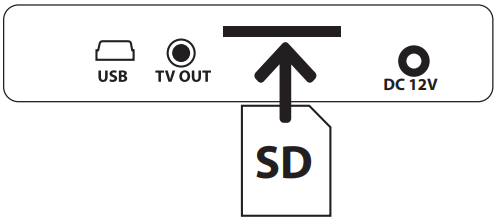
IMPORTANT: Inserting an SD Card after powering on the scanner will cause the scanner to shut off - Connect the power adapter into the DC 12V port at the back of the film scanner. Plug the other end of the power adapter into a power outlet.
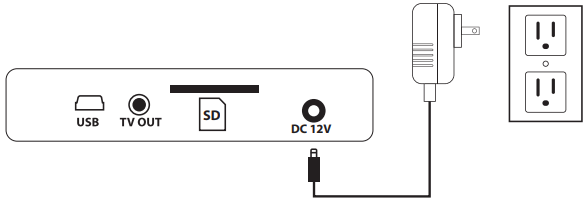
- Press the button on the scanner to turn it on.
Note: The scanner’s motor will rotate when it is turned on. This is normal.
Preparing Your Film
This scanner can support 8mm or Super 8 film on 3", 5" or 7" reels.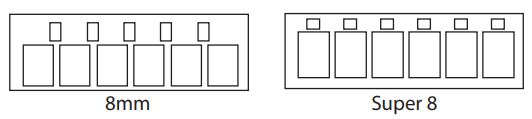
- Install your film reel onto the left reel shaft. Ensure the perforated holes on your film are on the inside, closest to the scanner.
Note: If using with Super 8 film you will need to install the red reel adapter.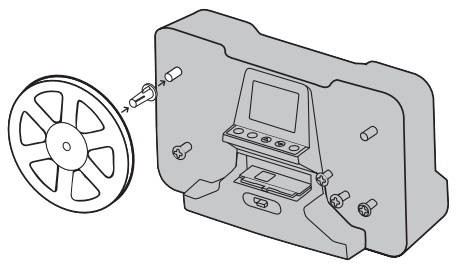 .
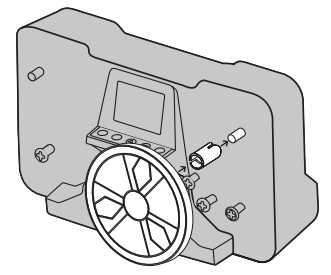
. - Install the included 7" film reel onto the right reel shaft of the scanner. If using a different reel use the grey reel adapter as needed.
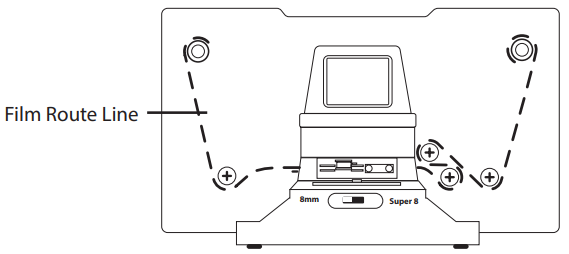
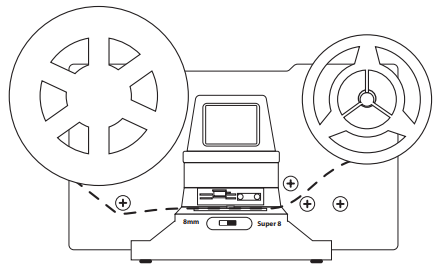
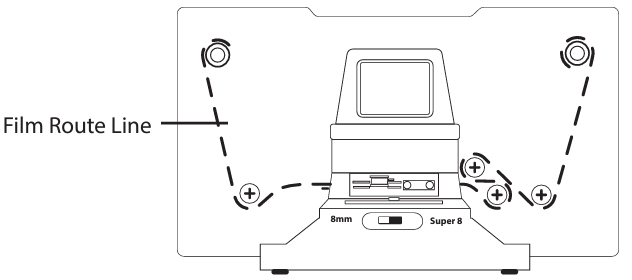
- Feed your film along the dotted film route line on the film scanner to properly load the film onto the scanner.
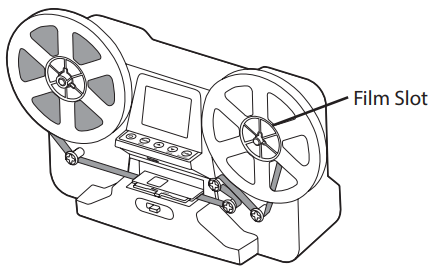
- Place the film around the empty film reel on the right, placing the end of the film into the slot on the reel. Gently rotate the reel 2-3 times to secure the film in place. Hold the film in place for the first rotation.
- Slide the Open tab to the left to release the film tray door latch.
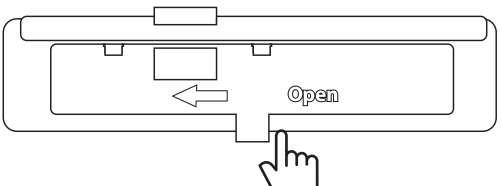
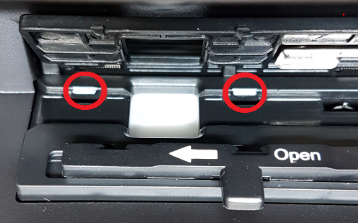
- Insert the film ensuring that the film's perforated holes are at the back and placed under the two white tabs located on the film tray.
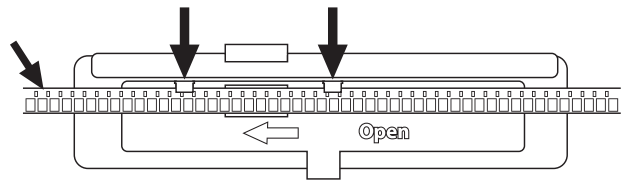
- Once the film is secured under the tabs close the film tray door to lock the film in place during scanning.
Selecting Film Type
-
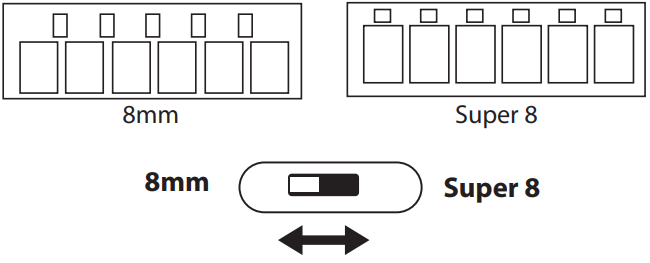
Change the film type to either 8mm or Super 8 by pushing the film type lever on the film scanner left or right.
Note: Switching film types will prompt the reel motor to adjust. This is normal
Adjusting Your Scan Settings
Exposure (Brightness)
IMPORTANT: Exposure can only be adjusted before recording video.
-
You can adjust the exposure by going to Exposure on the main menu.
- Use the and buttons to change the brightness value between 2.0 (brighter) and – 2.0 (darker). Note: The default setting is 0.0.
- Once you have chosen the value, press the OK button.
Sharpness
IMPORTANT: Sharpness can only be adjusted before recording your video.
-
You can adjust the sharpness by going to Sharpness on the main menu.
-
Use the and buttons to change the sharpness to either Low, Medium, or High.
Note: The default setting is medium. -
Once you have chosen your sharpness, press the OK button.
Frame Adjustment
IMPORTANT: The frame can only be adjusted before recording your video.
You can adjust the frame position by going to Frame ADJ on the main menu.
Use the  and
and  buttons to adjust the selected setting. Use the
  button to cycle
through the different adjustments. Press the  button to return to the Scanning Mode
screen.
X – Horizontal
Y – Vertical
W – Zoom
Resetting to Default
If you would like to change all settings (Exposure, Sharpness, and Frame Adjustments) back to
default, go to Default Setting in the main menu and press the OK button.
Rewinding Your Film
-
Remove the included 7” reel with your film on it. Install the reel on the left reel shaft. Note: The red reel adapter may need to be removed. Once scanning is complete you will need to rewind your film reel.
-
Install the empty original film reel on the right reel shaft, using the grey reel adapter if necessary.
-
Feed the film using the below diagram and install on the empty film reel. Remember to rotate the reel 2-3 times to secure it in place.
- Press the MENU button to open the main menu.
- Use the button to select Fast Forward and press the OK button to select it.
- Use the button to select Yes and press the OK button to begin fast forwarding.
- Once fast forwarding is complete press the OK button to stop.
Frequently Asked Questions
What kind of SD card can I use?
Your FS81 is compatible with SD cards up to 32GB and must be Class 4 or above. It's recommended to format the card in the scanner before using it as an unformatted card may display a "Cluster Size Error message".
Formatting will delete all data from the SD card.
How do I know if my film is 8mm or Super 8?
The most noticeable difference between 8mm and Super 8 is the position of the sprocket holes, the perforated edge of the film.
Troubleshooting
Why is the film not feeding through the scanner?
If you find the film is not moving while the scanner is running, the first place to look is the feed path of the scanner.
The film must be run through the feed path shown by the dotted line on the front of the scanner.
When you reach the scanning window, you will notice two white tabs to the left and right of the window. The perforated edge of the film must be under these tabs:
Set the film size switch on the front of the scanner to match your film format of either 8mm or Super8. If the incorrect size is selected, the film may not feed and the image will be out of frame.

Why is my saved video jittery?
There are a few different reasons your recorded video could be jittery, or appear to jump around:
- The holes in the film may be worn from use over the years, making if difficult for the scanner to feed smoothly.
- The SD card is older or a speed class lower than 4. Formatting the SD card can also correct this in some cases.
- The film is not under the white tabs pictured above.
How do I make the picture clearer?
If your scans have more grain than expected, you can decrease the sharpness which will soften the video. To do so follow these steps:
- Press Menu.
- Press the Right Arrow until you reach Sharpness.
- Press OK.
- Use the arrows to select LOW.
- Press OK.
Not all film will be the same quality, you may need to try different settings to get the best results.
Why does my scanner say Cluster Size error? How do I fix it?
This is a common error that can occur when you try to scan to an SD card that has been used in, has data from another device or exceeds the 32GB limit.
To resolve this, simply format the SD card in the scanner by formatting your SD card.
Formatting SD Card
Important: Formatting your SD card will cause all information to be erased, including protected files.
-
Press the "MENU" button to go to the main menu use the "RIGHT ARROW" button to go to Format.
-
Press the "OK" button to select Format.“All data will be deleted” warning will appear.
-
Press the "RIGHT ARROW" button to select “OK” and press the “OK” button to format.
-
Your SD card is now formatted.
Why is my FS81 black and white on my TV?
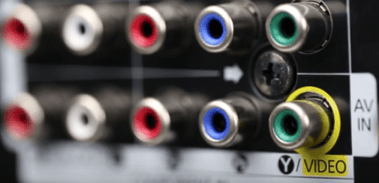
Modern TVs are beginning to phase out the analog RCA connections found on older TVs. When your film scanner is connected to the incorrect video input , it can appear in black and white.
If your TV does not have a yellow RCA port, some TVs use the green Component input for video. For specific information, please refer to your television manual or manufacturer.